How to Activate Geofencing Mode on eufySecurity App
Modified on: Tue, 2 Dec, 2025 at 9:05 AM
Compatible with:
5-Piece Home Alarm Kit, Motion Sensor, Entry Sensor, Keypad, eufyCam 2 Pro, eufyCam 2C Pro, eufyCam 2, eufyCam 2C, eufyCam, Floodlight Cam 2 Pro, Floodlight Cam 1080p, Floodlight Cam E 2K, Video Doorbell 2K (Battery-Powered), eufy Security Video Doorbell 1080p (Battery-Powered), Outdoor Cam Pro (Solo OutdoorCam C24), Indoor Cam 2K Pan & Tilt (Solo IndoorCam P24), Indoor Cam 2K (Solo IndoorCam C24), Indoor Cam Mini 2K, Video Doorbell Dual 2K (Battery-Powered), Floodlight Cam E340, Indoor Cam C220
What Is Geofencing? How Does It Work?
Geofencing uses the GPS location of a smartphone to create a virtual geographic boundary and it enables the eufySecurity app to automatically switch security modes when the user’s smartphone enters or leaves a preset area.
For example, when the GPS location of the user’s smartphone leaves the preset range, eufySecurity app will automatically switch security mode from Home to Away, depending on how the user has it configured in the app.
Note: eufySecurity app’s Location Service permission must be set to “Always” to enable Geofencing.
How Do I Enable Geofencing?
To enable Geofencing feature, please first make sure eufySecurity app already has Location Service permission set to “Always” on your smartphone.


Please then launch the eufySecurity app > Security mode > Geofencing.
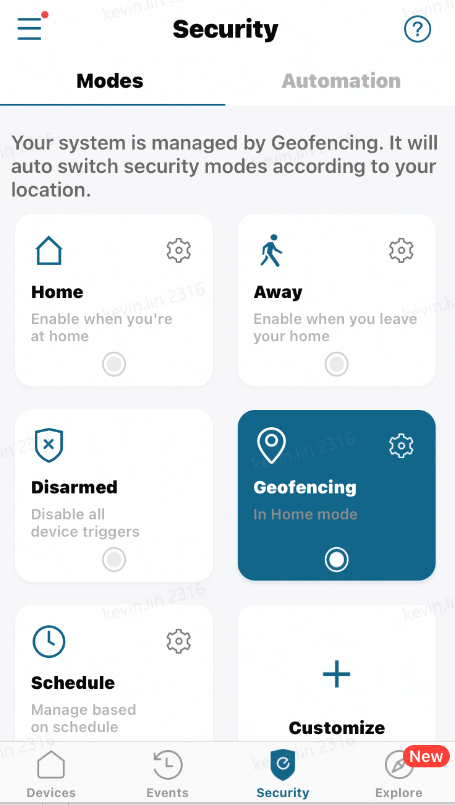
For how to use the geofencing function, please refer to How Does Geofencing Work for eufySecurity Devices.
If you still need help with setting up Geofencing, please contact us for further assistance.
Was this article helpful?
That’s Great!
Thank you for your feedback
Sorry! We couldn't be helpful
Thank you for your feedback
Feedback sent
We appreciate your effort and will try to fix the article